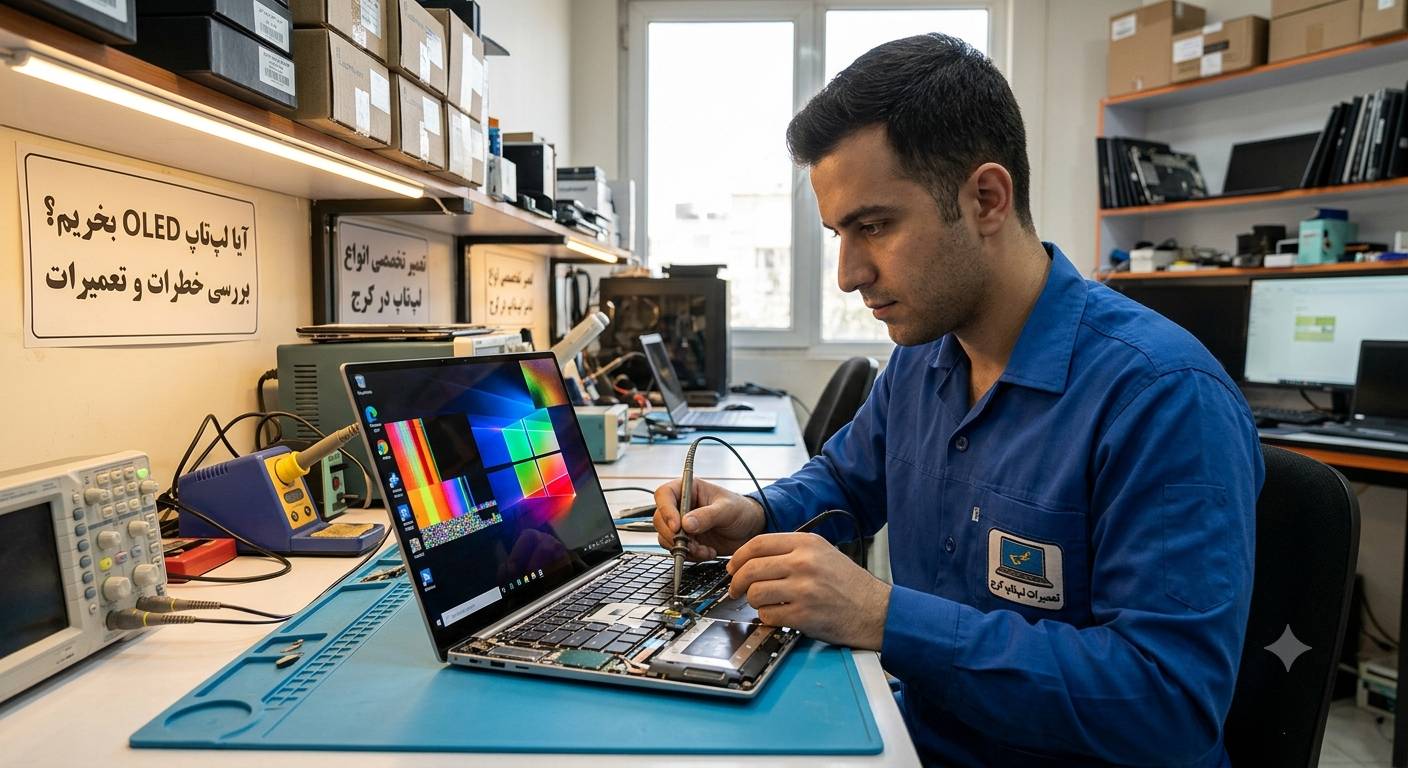

Installing Windows 11 on an older laptop may seem simple: change a Registry value, use a modified installer, or disable a compatibility check. However, bypassing TPM 2.0 requirements can create risks that are often overlooked. While it may not instantly damage hardware, it can affect firmware stability, encryption, update reliability, and the security of personal or business files. If you are considering this route, professional laptop repair services in Karaj can help you assess whether your device is genuinely suitable for Windows 11 before making irreversible changes.
In this guide, we examine the real consequences of bypassing Windows 11 requirements and explain when a repair or hardware upgrade is the safer choice.
What Is TPM 2.0 and Why Does Windows 11 Require It?
TPM stands for Trusted Platform Module. It is a security component built into many modern motherboards or CPUs. Its role is to securely store cryptographic keys, support secure boot processes, protect credentials, and help encryption features such as BitLocker work properly.
Windows 11 uses TPM 2.0 as part of a broader security baseline. Microsoft designed this requirement to reduce risks from ransomware, boot-level malware, credential theft, and unauthorized access to encrypted data.
A TPM chip does not make a computer invincible, but it creates a hardware-based trust layer. Without it, Windows may still run after a bypass, yet some security features may be weaker, unavailable, or less reliable.
Why Do Users Bypass Windows 11 Hardware Requirements?
The most common reason is that an older laptop still performs well for everyday tasks. Users may not want to replace a working machine simply because it lacks TPM 2.0 support, Secure Boot capability, or a supported processor generation.
Other common motivations include:
- Wanting the newer Windows 11 interface and features
- Avoiding the cost of a new laptop
- Continuing to receive newer application compatibility
- Testing Windows 11 on a secondary device
- Using a laptop that has TPM but has it disabled in BIOS
The last situation is different from a true bypass. If TPM 2.0 exists but is disabled, a technician can often enable it safely through BIOS or UEFI settings. This is much safer than modifying installation files or forcing unsupported hardware to run a newer operating system.
Can a Windows 11 Bypass Physically Damage the Motherboard?
In most cases, a normal Registry-based installation bypass does not physically damage a motherboard. Simply installing Windows 11 on unsupported hardware does not burn components, harm the CPU, or destroy the TPM chip.
The danger appears when users take more aggressive steps, such as flashing an unofficial BIOS, modifying UEFI firmware, disabling essential security settings, or installing an incompatible TPM module. A failed BIOS update can prevent the laptop from booting, while an incompatible firmware configuration may cause boot loops, missing storage drives, or repeated blue-screen errors.
| Action | Possible Impact | Recommended Approach |
|---|---|---|
| Registry installation bypass | Unsupported updates or feature limitations | Use only after creating a full backup |
| BIOS/UEFI modification | Boot failure or motherboard instability | Let a qualified technician handle it |
| Disabling Secure Boot | Reduced boot-level protection | Re-enable it whenever possible |
| TPM firmware changes | Encryption or recovery-key issues | Check compatibility before changes |
For users searching for تعمیرات لپ تاپ در کرج, it is important to understand that motherboard problems after a bypass are usually caused by firmware-level changes, not Windows installation alone.
تعمیر لپ تاپ کرج: When Firmware Changes Become Dangerous
Unofficial BIOS files and questionable “TPM unlock” tools are among the highest-risk methods. Laptop motherboards are designed around specific firmware versions, processor support lists, power-management settings, and security configurations.
A wrong BIOS file can cause a black screen, no power response, keyboard failure, or an inability to detect the SSD. In severe cases, recovery requires BIOS chip programming or board-level repair.
Before changing BIOS settings, it is wise to request a hardware compatibility assessment. A proper inspection can determine whether the laptop already has firmware TPM support, whether Secure Boot can be enabled, and whether a Windows 11 upgrade is worth the risk.
How Bypassing TPM 2.0 Affects Data Security
The larger concern is not hardware damage—it is data security. TPM 2.0 supports secure storage of encryption keys and strengthens startup integrity checks. When TPM and Secure Boot are unavailable or disabled, a malicious actor may have a better chance of attacking the system before Windows fully loads.
Potential risks include:
- Reduced protection against bootkits and rootkits
- Weaker BitLocker and device-encryption protection
- Higher risk if a laptop is lost or stolen
- Difficulty managing encryption recovery keys
- Reduced protection for saved passwords and Windows Hello credentials
According to Microsoft’s Windows 11 specifications, unsupported devices may not be entitled to receive updates, including security updates. Even if updates continue for a period, Microsoft does not guarantee long-term support for systems installed through unsupported methods.
Update Problems and Driver Compatibility After a Bypass
Many laptops will run Windows 11 after bypassing TPM checks, but “running” is not the same as being fully compatible. Older processors, Wi-Fi cards, touchpads, fingerprint sensors, graphics chips, and power-management controllers may not receive optimized Windows 11 drivers.
This can lead to overheating, shortened battery life, sleep-mode failures, poor Wi-Fi performance, or random crashes. An unsupported device may also encounter problems with major feature updates, forcing the user to repeat the bypass process later.
If your system begins restarting unexpectedly, fails to boot after an update, or cannot detect its drive, professional laptop diagnostics can identify whether the issue is software, firmware, storage, or motherboard related.
Safer Alternatives to Forcing Windows 11 Installation
Before bypassing TPM 2.0, consider safer options:
- Check BIOS settings first. TPM may appear as Intel PTT, AMD fTPM, Security Device Support, or Trusted Computing.
- Update official drivers and BIOS only. Use the laptop manufacturer’s support page, not unknown third-party tools.
- Back up important files. Create a full backup before changing Windows, partitions, encryption, or firmware.
- Keep Secure Boot enabled. If your laptop supports it, Secure Boot should remain active.
- Consider upgrading hardware. In some cases, adding an SSD or RAM and remaining on a supported operating system is more practical.
- Ask for a technical inspection. A technician can determine whether the device can support Windows 11 safely without a bypass.
FAQ: Windows 11 TPM 2.0 Bypass
Does bypassing TPM 2.0 automatically damage a laptop?
No. A standard software bypass usually does not physically damage hardware. The risk increases when unofficial BIOS files, firmware edits, or incompatible TPM modules are used.
Will Windows 11 work without TPM 2.0?
It may install and run on some systems, but compatibility, updates, and security features are not guaranteed.
Can I use BitLocker without TPM 2.0?
BitLocker can work in certain configurations without TPM, often using a password or USB key at startup. However, TPM-based protection is generally more convenient and secure.
Should I disable Secure Boot to install Windows 11?
Only disable it if absolutely necessary and only temporarily. Secure Boot helps prevent unauthorized boot-level software from loading.
Conclusion: Is a TPM 2.0 Bypass Worth the Risk?
Bypassing Windows 11 requirements is not automatically disastrous, but it is not a harmless shortcut either. The biggest concerns are unsupported updates, weaker data protection, driver conflicts, and serious motherboard issues caused by unsafe BIOS or firmware modifications.
If you are unsure whether your laptop supports TPM 2.0, Secure Boot, or Windows 11 officially, do not rely on random online tutorials. For reliable تعمیرات لپ تاپ در کرج, contact Karaj Rayan’s laptop repair team for a compatibility check, BIOS evaluation, motherboard diagnostics, and secure Windows installation support.